


Everything you need to improve your stream




Upgrade your stream
experience with Stream Deck
experience with Stream Deck
LIVE channels
Need inspiration?











If you get an error, make sure that your username is spelled correctly, and that you are currently live streaming when connecting TikFinity to your live stream. Also make sure that you have entered your @-handle and not your display name! You can configure TikFinity without being connected.
Make sure you opened the run.bat file on your pc and that your Minecraft Server is running. Also make sure that you have installed the ServerTap plugin. If you are hosting your server externally, make sure the IP Address is correct and that port 4567 is opened on the external server. Here is a tutorial on how to set up a local Minecraft Server: https://www.youtube.com/watch?v=aj1nw7tMZ6M
If your alerts are not working and your sound effects won't play in your live stream, make sure you have set them up in your Actions & Events. Once you created the Action, and it is connected to an event, look at the Action and reconfirm what Screen the Action plays on. Add that Screen to your TikTok Live Studio or OBS Scene as Link Source. You can test the actions by pressing the "Play" aka "Test" button. If you use the Sound Effect Feature for alerts on your phone, make sure you keep the TikFinity open.
If your Screens are being shown as offline inside of TikFinity, please reconfirm if you have added them to your TikTok Live Studio or OBS Scene as a Link Source/Browser Source. If you have added them correctly, it will show you that the Screens are now online. If there are still problems, restart TikFinity and Live Studio or try to add the link source again.
No, TikFinity currently doesn't offer a word filter for the Text-To-Speech voice. However, you can use Tiktoks built-in word filter and it will filter out inappropriate messages for you. It also makes sense to limit TTS to the top supporters or subscribers and to set a User Cooldown.
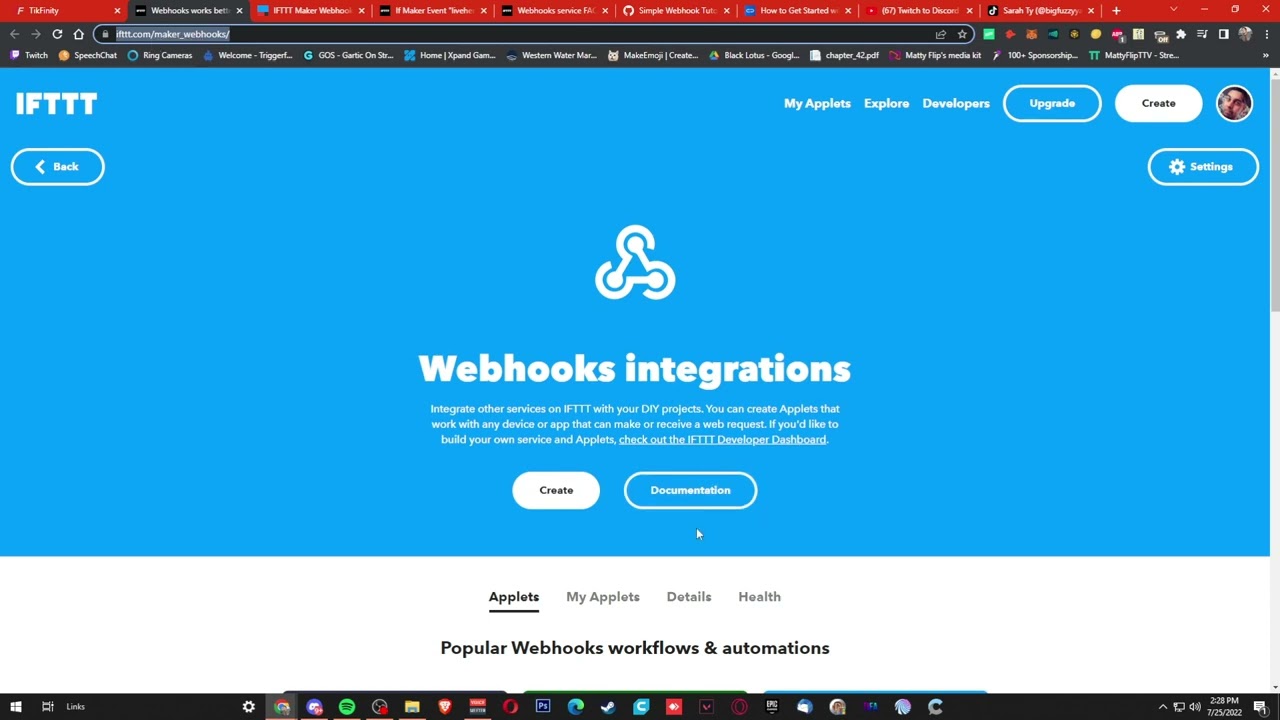
Actions and Events are the fundamentals of TikFinity! You can set up On-Screen Alerts, Sound Effects, and many more features. You can trigger Actions using Events, which will run your Actions based on different triggers (specific gift sent, likes sent, user joined, and more). It offers you countless possibilities to make your stream interactive. Webhooks for controlling smart devices is just the beginning.
Yes! Sound Alerts work on your phone! Just make sure you have TikFinity opened and you should hear your sound effects.
While some of our Staff can help you with basic Minecraft commands and features, we advise you to do your own research based on what you need. You can find plenty of information for Minecraft commands, NBT tags, and much more. To understand the setup of your Minecraft Server using TikFinity we recommend you to check out Harry / Mojo's Video where he explains everything step by step. (https://www.youtube.com/watch?v=aj1nw7tMZ6M).
Currently, there are no set requirements to obtain an official Stream Key by TikTok. TikTok issues Streamkeys to Creators that positively got TikTok's attention. They will reach out to you. There also are some Agencies that can request a Stream Key for you.
The TikTok Algorithm always changes and there are no clear rules on what is causing limitations or warnings in your livestreams except for the ToS. A few basic rules we were able to establish as a community were the following: (1) Don't / rarely mention gifting, liking, or other interactions of your live streams. TikTok detects these and can flag your stream as "non-genuine Interactions". (2) Don't use images of TikTok gifts. (Some users got around these restrictions by mirroring the images, or obscuring them in another way.) (3) Do not show the word "follow", "like" or similar words in your streams. You will be warned for the same reason as No.1.
(1) Download Java 17 and Minecraft. (2) Set up a PaperMC Server. (3) Install the ServerTap Plugin. (4) Open the "Setup" section of Tikfinity. Scroll down to where you find "Minecraft Connection". (5) Enter your Server IP (if you are hosting the server externally.) or type "127.0.0.1". (if you are hosting the server locally on your PC). Don't change the port and the password. (6) Click on "Test Connection" and you should see that the connection has been established successfully. (If it isn't working, make sure you opened the run.bat file of your server and that the server is running) (7) To create interactions with your game, all you do now is go to your Actions & Events and create your desired Actions. Check "Exec Minecraft Command" and enter the command. Then you just bind it to an action and you have set up your first interaction!
This is very easy to do with the following TNT command generator: https://nicemarkmc.com/multiple-tnt-at-once. After you have opened the website you only have to set the FuzeTime (the time in ticks (20 ticks = 1 second) until the TNT explodes) as well as the number of TNTs and after a small change you can now use the generated command in TikFinity. Important: In order for the command to work in TikFinity, you only have to add "execute at PLAYERNAME run" at the beginning of the generated command. An example to spawn 2 TNTs at once: "execute at PLAYERNAME run summon area_effect_cloud ~ ~1 ~ 'Passengers: [{id:tnt},{id:tnt}]'"
This error occurs when the player cannot be verified on the Mojang session servers. This is mostly the case when a player is using unofficial/cracked versions of Minecraft (if not try restarting the game). To solve this problem open the server.properties file which should be in the directory of your Minecraft server and change the text (probably in line 23) from "online-mode=true" to "online-mode=false" and you're done your problem should be solved!
Be sure you have the latest Java version installed on your computer/server, adjust the start script (e.g. by changing java to your Java directory) and check if you have also adjusted it in the Java Home Environment (https://www.youtube.com/watch?v=bUnUtt-fe3s&pp=ygUNc2V0IGphdmEgaG9tZQ%3D%3D)
Solution if you are the owner of the panel: (1) Open the admin panel (for default: https://YOURPTERODACTYLPANELIPORADDRESS/admin) (2) Go to Nodes and click on the Nodename of the server where your minecraft-server is hosted on (3) Click on Allocation and Assign a New Allocation by setting the IP-Address (to the ip-address of the server) and the Ports to the ServerTap port (by default: 4567) (4) Click on Submit and switch to the Servers section (5) After switching click on the servername of your minecraft-server, click on Build Configuration, assign the ServerTap port (Assign Additional Ports) and click on Update Build Configuration (6) Now you're ready to go! Just start/restart your pterodactyl-server and have fun with using TikFinity. Solution if you aren't the owner of the panel: (1) Go to your Pterodactyl-Server and switch to Network (2) Click on Create Allocation and set the port which should be added to the ServerTap port (by default: 4567) (3) Now you're ready to go! Just start/restart your pterodactyl-server and have fun with using TikFinity. If the Network-Section or the Create Allocation button does not appear please contact the owner of the panel and ask him for permission